Recover Data using Change Device
[Recover Data using Change Device]
[1] Sending Save Data from an origin device
[2] Collecting sent transfer data on a new device
[Before you begin the Save Data Transfer]
Perform an Account Link or start a Data Transfer (Make sure to have your Inquiry Code recorded in a secure location) before opening the app on another device in order to make your most recent save data available to collect.
Select Transfer Saved Data to this Device on your new device in order to continue playing The Battle Cats.
※ Do not perform a data transfer if your wireless network connection is not stable.
※ Your data can be stored for up to three months - please resume your data transfer within this time period. Ensure that you have a strong and stable network/WiFi connection before attempting to continue your Data Transfer.
※ The Transfer Code and Confirmation Code displayed after your Data Transfer begins will be required to resume the transfer: DO NOT LOSE THIS INFORMATION.
※ Data from the English version of the Battle Cats cannot be transferred to other language versions of the game.
※ Please tap the button only once when starting or resuming Data Transfers to avoid error.
※ Once a transfer to a new device has been completed, the original data on other devices will be invalidated and cannot be used.
※ PONOS will not assume responsibility for data lost due to network error, device error, or user error, and cannot provide a guarantee that data will be transferred without error.
[1] Sending Save Data from an origin device
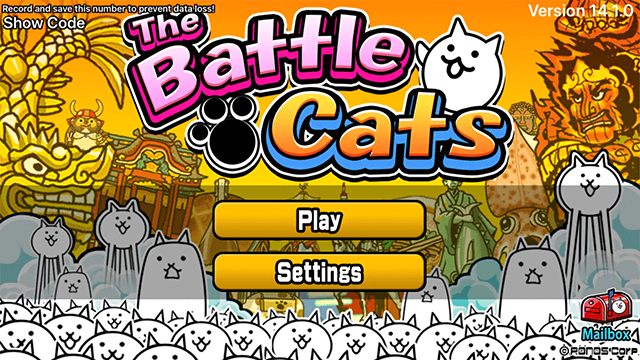
1.Select "Settings" from the Title screen.
2.Select "Change Account/Device" from the Settings screen.
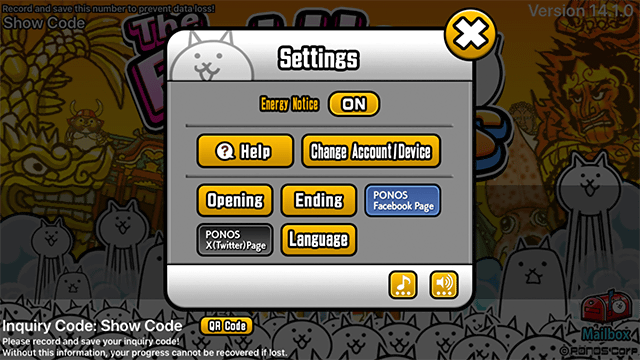
※ The screenshot is from an iOS device. Android devices may vary slightly.
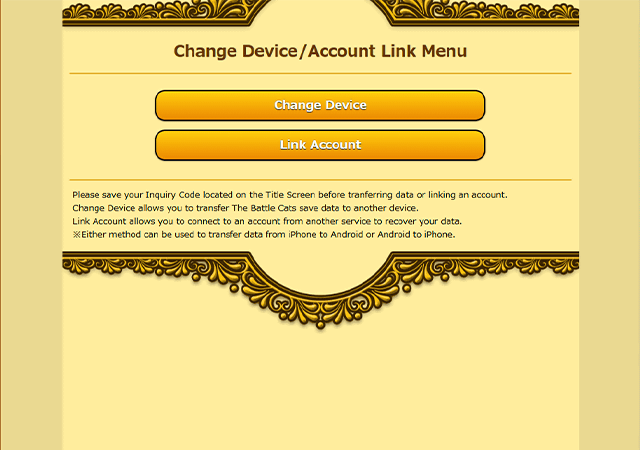
3.Carefully read the information displayed regarding Save Data Transfer. If you acknowledge the terms, then select "Transfer Data to New Device" from the Change Device screen.
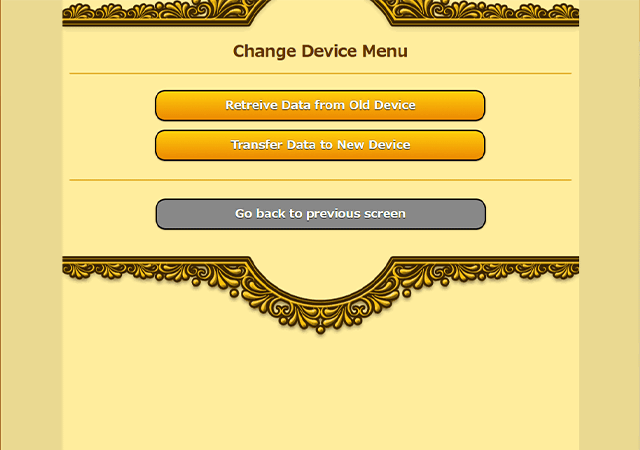
4.Select "Retrieve Data from Old Device" on the Change Device Menu.
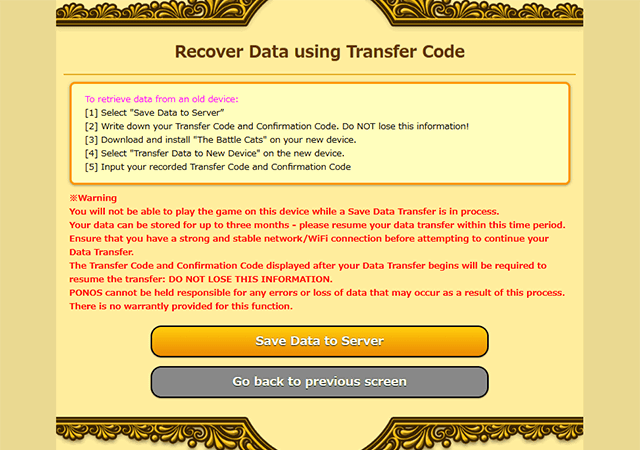
5.The Save Data Transfer process will begin. Please confirm the onscreen information, and select "Save Data to Server" if you agree to proceed.
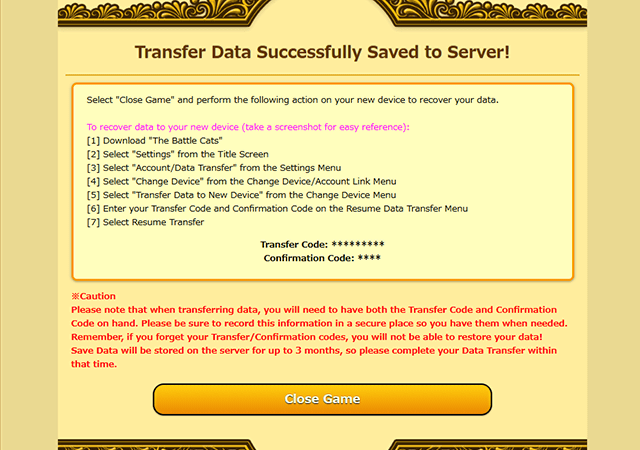
6.After confirming that your data has been successfully saved to the server,
please record your Transfer Code and Confirmation Code. After double-checking that your codes have been correctly recorded,
tap the "Close Game" button.
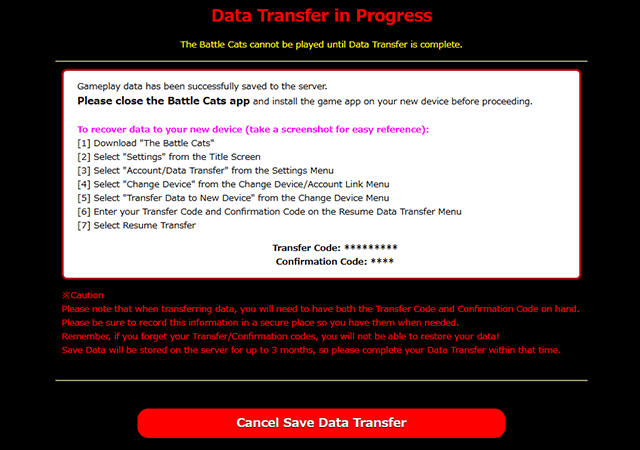
7.Once the process is finished, confirm the onscreen information once more before exiting the application.
※ If Save Data Transfer is halted, then you will have to start from the beginning of the data transfer process.
(The previous codes used before the transfer was halted cannot be used again.)
[2] Collecting sent transfer data on a new device
1.Select "Settings" from the Settings screen.
2. Select "Change Account/Device" from the Settings screen.
※ The screenshot is from an iOS device. Android devices may vary slightly.
3. After familiarizing yourself with the Account/Data Transfer menu, select "Change Account/Device".
4.Select "Transfer Data to New Device" on the Change Device Menu.
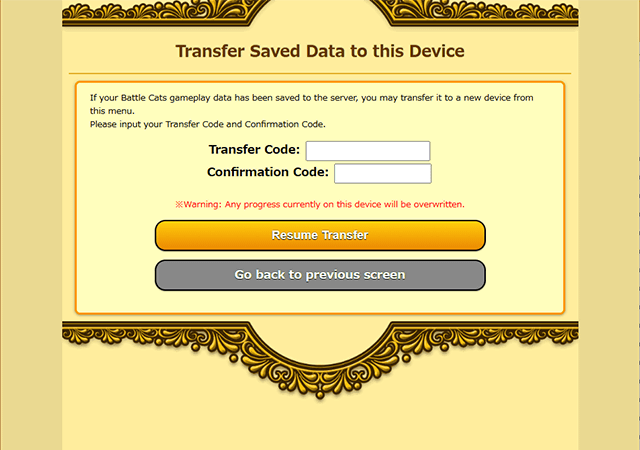
5.After reading the displayed notice carefully, please input your Transfer Code and Confirmation Code. Once these have been correctly input, tap "Resume Transfer".
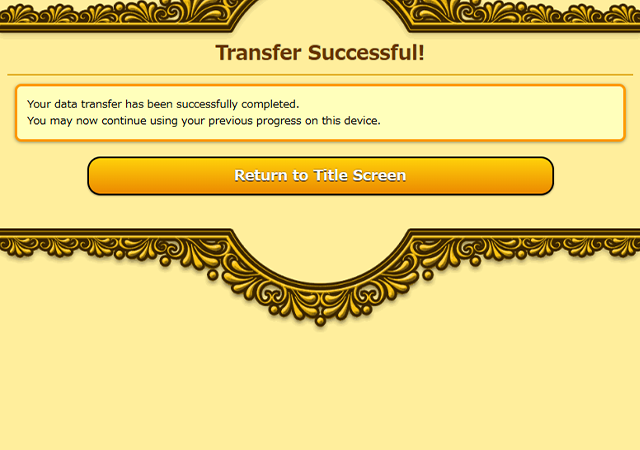
6.After a few moments, the Save Data Transfer will complete. You may return to the title once the process has completed.
Warning regarding save data transfer
※ The Transfer Code and Confirmation Code received can only be used once.
※ If the data transfer process is halted or paused, then the previous code cannot be used again.
※ PONOS provides no guarantee that using a service outside of the one provided in-game will safely transfer save data.